

First Step:
Make the chart like this

Second Step:
Right-click on ‘Sub-Category’ select ‘Create’ -> ‘Parameter’, the Parameter list will be automatically populated with the ‘Sub-category’ name, then right-click on it to choose ‘Show Parameter’

Third Step:
Right-click on the newly-created Parameter, choose ‘Create’ -> ‘Calculated Field’, pick an informative name ‘PickSubCat’, input the formula as follow:

4th Step:
Create a new Calculated Field, name it ‘FakeHighlight’, input the formula as follow:

5th Step:
Put them all together, in the Mark card ‘All’, drag ‘PickSubCat’ to the Colour mark, ‘FakeHighlight’ to the Details mark as follow

6th Step: Table Calculation
Right-click on the ‘Sum(Sales)’ on Rows, choose ‘Add Table Calculation’, and choose the options as follow, do this for the other ‘Sum(Sales)’ as well:

7th Step:
Right-click on the right ‘Sum(Sales)’ and pick ‘Dual Axis’, then ‘Synchronise Axis’, we will have the following result

8th Step:
Drag that Sheet on a Dashboard. On the menu bar, click on ‘Dashboard’, then ‘Actions’ -> ‘Add Actions’ -> ‘Change Parameter’, configure as follow:
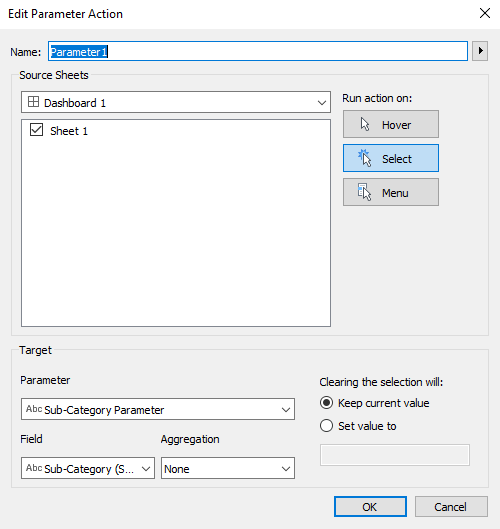
Then similar add another action ‘Add Actions’ -> ‘Highlight’, configure as follow, this will help correctly highlight the lines and points of the ‘Sub-Category’ you click-on:

Last Step:
Choose the colour for the un-selected ‘Sub-Category’, add title and you will have and nicely formatted Bump Chart with will highlight the path of trend for each selected ‘Sub-Category’

You can download my sample Dashboard from my Tableau Public link.